
Flush or clear the DNS Resolver cache in Windows 10 and 11
In Windows 10 and 11, you may flush or clear the DNS Resolver cache to remove old or bad cache stored on your computer. This means completely removing all the information stored within the cache, and can help troubleshoot website connectivity issues.
Flush the DNS cache in Windows Command Prompt:
1. Press the Windows Key + R on your keyboard, this will open Run in Windows.
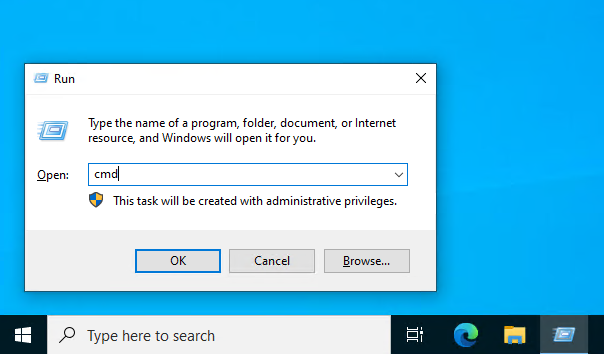
2. As shown in the image above, type cmd into the textbox and press Enter on your keyboard.
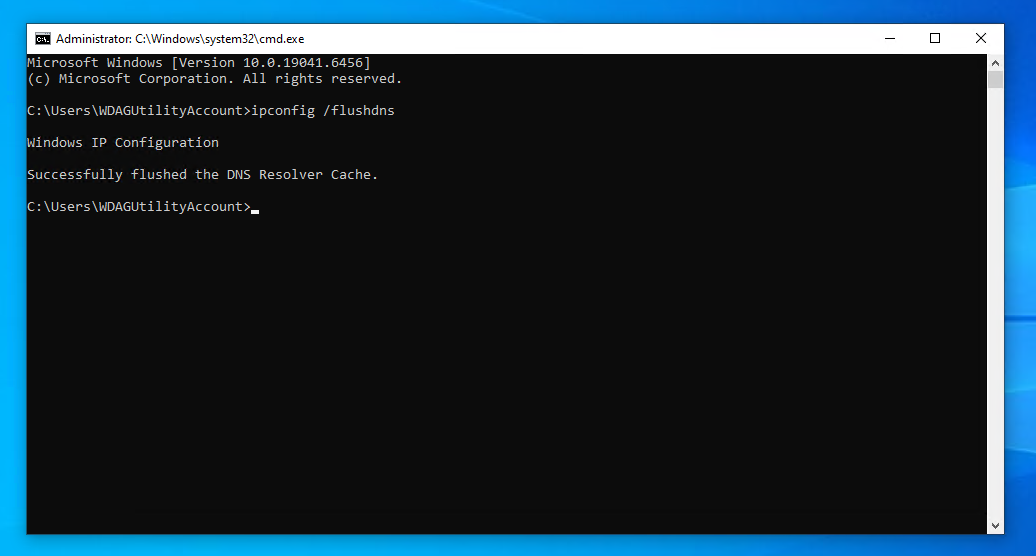
3. Type ipconfig /flushdns into Windows Command Prompt, and press Enter.
4. If the command above has been executed successfully with the appropriate permissions, you will receive a success response in the command terminal. The DNS Resolver cache has now been cleared.
5. To exit Windows Command Prompt, type exit or click the Red X at the top right corner of the window.
About this article
- Written by Gary Phatt, a TheOpenRoad Support employee.
- Still need help? Please write to us in the comment section below or contact TheOpenRoad support.
Please rate your experience with this article today:
When you select a number, 1 being the lowest and 9 being the highest; the page will refresh and your feedback will be submitted to TheOpenRoad.