
Install Python in Windows 10 and 11
Python is a highly popular and free general purpose programming language, if you want to start programming in Python on your Windows computer, you'll need to download and install a specific version of Python.
Install Python 3:
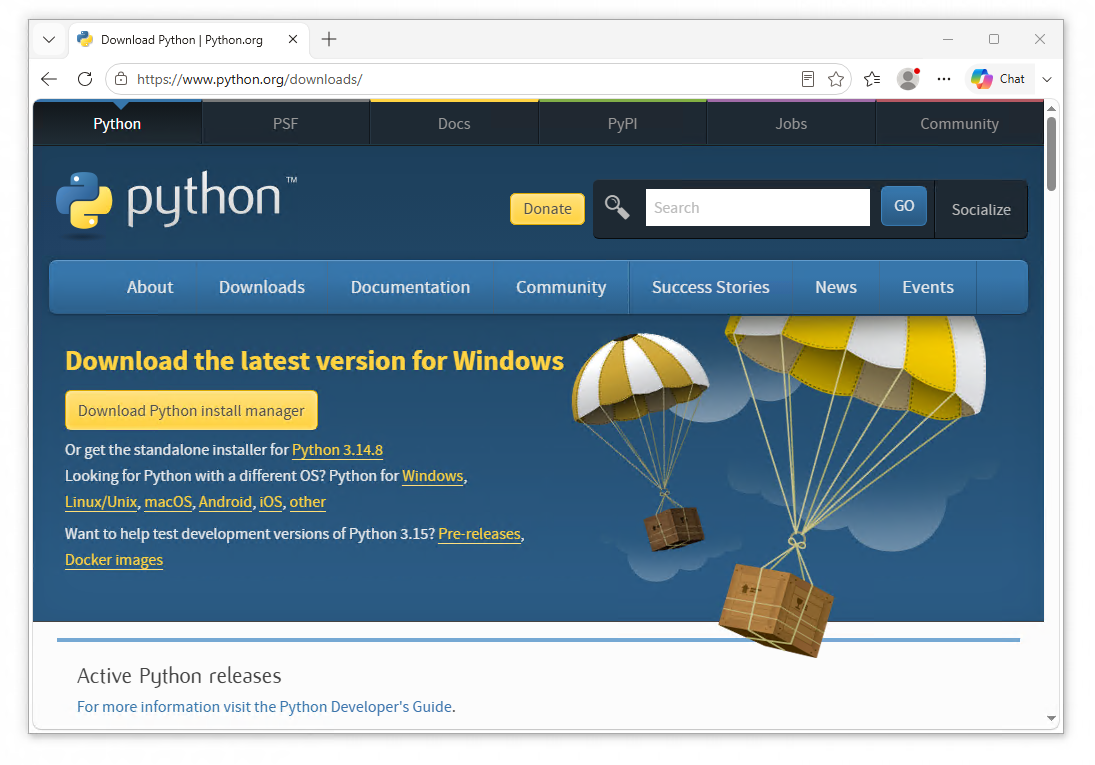
2. The most recent version of Python will always appear on the Download button near the top of the page.
Python now includes a "Python install manager" as the download button on the downloads page, this can make upgrading versions easier; but in the event you just want to install one specific version, you can click on the Standalone Installer link just below. If you are still having trouble downloading the standalone installer, try this link to install Python 3.14.8.
3. Once the installer completes, you may run the installer to install Python on your computer.
4. During setup, check the box next to Add Python <version> to PATH. It's at the bottom of the window. In case you don't see it, you can proceed with the next step anyway.
5. Click Customize Installation, it is the second blue link on the installer window.
6. Review the installation settings, and click Next. Python's required features are selected by default; Unless you have a specific need to skip installing select packages, you can leave these selections alone.
7. You can review the Advanced Options pages to make any changes in your favor, if you are a System Administrator; you can select Python to install for all users on the computer by selecting the checkbox. Click Install after you are done making your changes.
8. You may receive a message from User Account Control confirming the installation of Python, click on Yes to confirm. If it asks you for credentials you do not have, you may not have the required privileges to install Python. Contact your system administrator to resolve this issue.
9. You should then be shown an Installation Successful screen after installation completes, click on the Disable path length limit blue link. This final setting ensures that Python, and other applications can use paths more than 260 characters in length.
10. You may be prompted again by User Account Control for Administrator confirmation, after granting permission; you shall be shown another success popup, and can click Close to exit the installer once complete.
Testing Python 3:
Once Python 3 has been successfully installed on your system, you can run the following commands shown in order to verify that Python has been installed successfully and is working correctly on your computer.
1. Press the Windows Key + R on your keyboard, this will open Run in Windows.
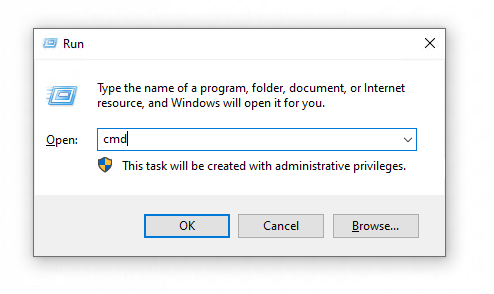
2. As shown in the image above, type cmd into the textbox and press Enter on your keyboard. This will open Windows Command Prompt onto your desktop.
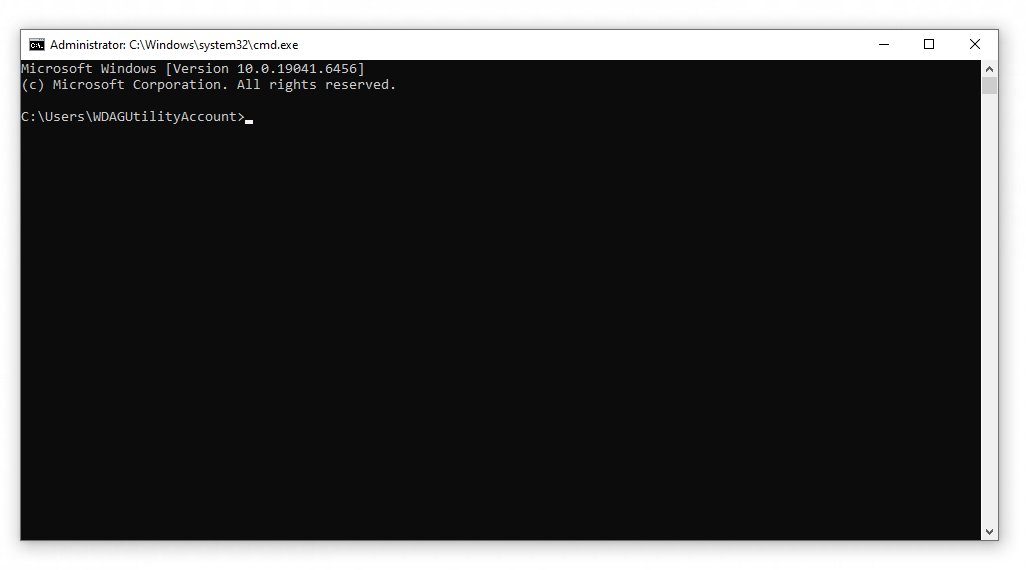
3. You can run the following commands below to run in Windows Command Prompt:
- Type
pythoninto the terminal window and press Enter on your keyboard, you should then see>>>appear, this means Python is working and the path is set correctly. - Type
exit()to return back to Windows Command Prompt.
4. If the commands above work correctly on your computer, Python has successfully been installed and is now ready for use.
About this article
- Written by Gary Phatt, a TheOpenRoad Support employee.
- Still need help? Please write to us in the comment section below or contact TheOpenRoad support.

Please rate your experience with this article today:
When you select a number, 1 being the lowest and 9 being the highest; the page will refresh and your feedback will be submitted to TheOpenRoad.